
naps2 Portable - Professional Scanning Without Installation
Everything about naps2 Portable: how it works, where settings are stored, running it from USB, using it without admin rights and keeping it updated.
Read article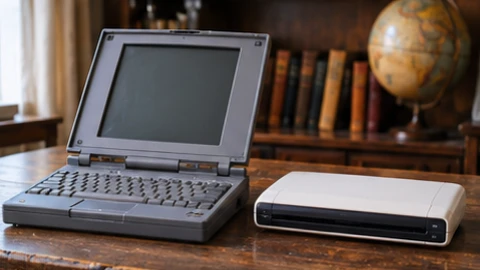
If you need a naps2 32-bit download, you need one specific release: naps2 7.5.3. This article shows where to obtain it, which package to select and how to set it up correctly on a 32-bit Windows computer.
Before downloading anything, confirm your system type in Settings → System → About (or Control Panel → System on older versions). The 32-bit release is required only if Windows itself is 32-bit, or if you are using Windows 7 or 8, which naps2 8 no longer supports.
Confirm whether Windows itself is 32-bit before choosing an older package. Check the release information and scanner driver compatibility, then keep a backup of existing profiles and documents before changing an installation.
After setup, scan a short document and open the PDF on the computer where it will be used. Older operating systems may no longer receive security updates, so consider limiting network access and planning an upgrade.
If you are running 64-bit Windows 10 or 11, do not use 7.5.3; download the current 8.x release instead, which is faster and continues to receive updates.
naps2 7.5.3 remains available from the project’s official channels. On the official download page, look for the link to versions for older Windows systems; on GitHub, open the project’s Releases page and scroll to the 7.5.3 entry, where the installer and portable archive are listed as assets.
Package managers offer it too. Chocolatey users, for instance, can pin the legacy release with:
choco install naps2 --version 7.5.3Avoid portals that wrap the file in their own downloaders, and be wary of any site describing 7.5.3 as a “32-bit pro” edition – there is no such thing.
Two packages are available for 7.5.3:
Both contain the same application and the same features, so the choice comes down to how you intend to use it.
naps2 7.x relies on the .NET Framework. Windows 10 includes a suitable version already, but Windows 7 machines that have not been updated for some time may need .NET Framework 4.6.2 or later. If naps2 refuses to start with an error mentioning .NET, install the framework from Microsoft and try again.
It is also worth ensuring that the scanner’s own driver is installed before running naps2, because naps2 relies on that driver to communicate with the device.
Right-click the downloaded file, choose Properties, and open Digital Signatures. A valid signature from the project maintainer confirms authenticity. On Windows 7, you can also compute a hash with the built-in certutil tool:
certutil -hashfile naps2-7.5.3-setup.exe SHA256Compare the output with the published checksum. Matching values mean your file is identical to the official one.
For the portable archive, simply extract it to a folder and run NAPS2.exe. Settings will be stored in the same folder, which keeps the host computer untouched.
Open Profiles and choose Add. Give the profile a clear name, select WIA or TWAIN as the driver, then click Choose device and pick your scanner. Set the resolution to 300 DPI for text documents, choose greyscale or colour as appropriate, and select the correct paper source: Glass for the flatbed or Feeder for an automatic document feeder.
Finally, open OCR from the toolbar, download the language packs you need and enable OCR. Every PDF you save from then on will be searchable.
On a 32-bit computer, the scanner driver is as important as naps2 itself. Visit the manufacturer’s support website, enter your scanner model and look specifically for drivers labelled for “32-bit” or “x86” editions of your Windows version. Install the basic driver package rather than the full software suite if both are offered; naps2 needs only the driver, and the suite often adds background utilities that consume scarce memory.
Once the driver is installed, try WIA first in naps2, since it is built into Windows and generally stable. If the feeder or duplex options do not behave as expected, create a second profile using TWAIN, which often exposes more of the device’s native features.
With these settings, even modest machines from a decade ago scan and recognise text comfortably.
If the installer exits without completing, first check that you downloaded the 7.5.3 release rather than an 8.x build, which will refuse to run on a 32-bit system. Next, confirm that the .NET Framework is present and up to date, and that you are running the installer with administrator rights. If antivirus software interrupts the process, verify the file’s signature and temporarily allow it. As a last resort, the portable archive avoids installation altogether and almost always runs where the installer cannot.
Should naps2 open but display an error when scanning, the problem lies with the driver rather than with naps2. Reinstalling the scanner driver and restarting the computer resolves the majority of these cases.
If you maintain several older computers, you can configure naps2 once and copy the result. With the portable edition this is trivial – simply copy the entire folder. With the installed edition, profiles are stored in your user data folder and can be copied to the same location on another machine. Remember that the selected device may need to be chosen again on each computer, since scanner identifiers can differ.
Files produced on a 32-bit computer are entirely portable. The PDFs, TIFFs and images that naps2 7.5.3 creates follow the same standards as those produced by the newest release, so they open on any modern computer, tablet or phone. If you plan to retire the older machine eventually, consider saving scans directly into a network folder or a cloud-synchronised directory, so that the archive is already in its long-term home and nothing needs to be migrated later.
Some older 32-bit computers are deliberately kept offline, for example in laboratories or on factory floors. naps2 suits these environments well. Download the 7.5.3 installer or portable archive on a connected computer, together with any OCR language data you need, and transfer everything by USB. Using the portable edition is often easiest: configure it fully on the connected machine, including downloading OCR languages, then copy the complete folder across. The isolated computer can then scan, recognise text and save PDFs without ever touching the internet.
Keep a dated copy of that folder in your records, so that the same configuration can be restored quickly if the machine is ever rebuilt.
Since 7.5.3 will not receive further updates, the aim is stability. Keep a copy of the installer in a safe place in case you need to reinstall, export your profiles if you configure many of them, and avoid replacing it with unofficial “updated” builds that claim to add features. If the computer is later upgraded to 64-bit Windows 10 or 11, move to the current naps2 release at that point.
naps2 7.5.3 is the last release that supports 32-bit Windows.
Yes. Like every naps2 release, version 7.5.3 is free and open source under the GPL licence.
Yes. naps2 7.5.3 includes Tesseract OCR and can create searchable PDFs.
Yes. The portable archive runs from any writable folder without installation.
Very old naps2 releases ran on Windows XP, but they are long outdated. Windows 7 or later with naps2 7.5.3 is strongly recommended.
A naps2 32-bit download means naps2 7.5.3, obtained from the project’s releases or a reputable package manager. Choose the installer or the portable archive, verify the signature, create a profile and enable OCR, and even an older 32-bit computer will produce clean, searchable PDFs with ease.
Download naps2 for Windows (32-bit)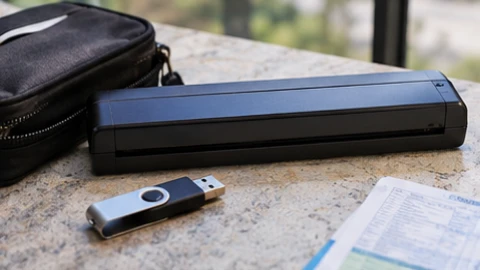
Everything about naps2 Portable: how it works, where settings are stored, running it from USB, using it without admin rights and keeping it updated.
Read article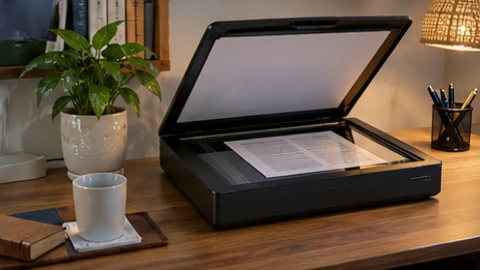
Our in-depth naps2 review covers interface, scanning quality, OCR accuracy, performance, file output, limitations and who should use it.
Read article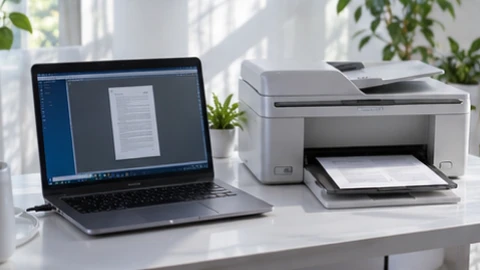
A clear walkthrough on how to install the naps2 scanner software on Windows, macOS and Linux, configure a profile and complete your first scan.
Read article