
naps2 32-bit Download - How to Get and Install Version 7.5.3
Step-by-step naps2 32-bit download article: where to find naps2 7.5.3, installer versus portable, verification and setup on 32-bit Windows.
Read article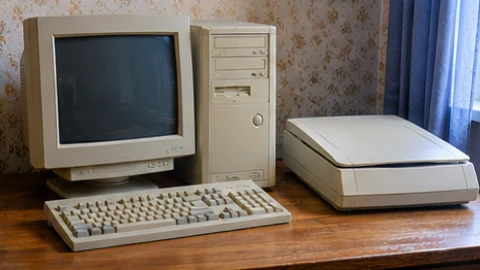
Plenty of perfectly serviceable computers still run 32-bit Windows. If you are trying to use naps2 32-bit on one of them, this article explains exactly which version works, why newer releases do not, and how to get the best from an older system.
The terms describe how a processor and operating system handle data and memory. A 32-bit Windows installation can address at most about 4 GB of RAM and can run only 32-bit programs. A 64-bit installation can use far more memory and can run both 64-bit and most 32-bit programs.
A working 32-bit computer can still be useful for a straightforward scanning task if its scanner driver and software are compatible. Test your usual paper size, feeder and output format before relying on it for a large archive.
If you need current software releases or ongoing operating system security updates, evaluate a supported 64-bit computer. Keep copies of your profiles and sample PDFs so you can compare results during migration.
Most computers sold since around 2010 have 64-bit processors, but some were shipped with 32-bit Windows, and certain specialised machines – point-of-sale terminals, laboratory PCs or older office desktops – still run it today. On such systems, the version of naps2 you choose matters.
Open Settings → System → About on Windows 10 or 11 and look at System type. On Windows 7 or 8, right-click Computer or This PC, choose Properties, and read the same field. The entry will state “32-bit operating system” or “64-bit operating system”.
Note the distinction between the processor and the operating system. A 64-bit processor running 32-bit Windows still behaves as a 32-bit system for software purposes, so it is the operating system entry that counts.
With the release of naps2 8, the project maintainer moved the application to a modern .NET runtime and modern build tooling. This brought significant gains in performance and maintainability, along with native ARM64 support, but it also meant ending support for 32-bit Windows as well as for Windows 7 and Windows 8.
The decision reflects a broad industry trend. Microsoft itself no longer offers 32-bit editions of Windows 11, and maintaining parallel builds for a shrinking group of systems absorbs maintenance time that can be spent on improvements benefiting everyone.
The answer for 32-bit users is naps2 7.5.3, the last release in the 7.x series. It runs on 32-bit and 64-bit editions of Windows 7, 8, 8.1, 10 and 11, and includes all of the essential features: WIA and TWAIN scanning, profiles, OCR, PDF and image export, page editing and the command-line interface.
Version 7.5.3 is mature and stable. It lacks some of the conveniences added in naps2 8, such as the scanning sidebar and certain interface refinements, but for day-to-day document scanning it remains thoroughly capable.
Choosing naps2 7.5.3 on a 32-bit system means retaining:
What you forgo are the 8.x additions: the redesigned sidebar, ESCL improvements, newer OCR handling and ongoing bug fixes. Security updates will not be issued for 7.5.3, so keep the rest of the system protected with a current antivirus product.
The process is the same as for any Windows installer. Download the 7.5.3 setup file or portable archive, run it, accept the licence and complete the wizard. On Windows 7, ensure that the .NET Framework 4.6.2 or later is installed, as older versions of the 7.x series rely on it.
After installation, create a profile, choose WIA or TWAIN, and select your scanner. If you scan large batches, consider a moderate resolution such as 200–300 DPI, since 32-bit systems have limited memory and very high resolutions can slow the application noticeably.
Older computers can still scan efficiently with a few adjustments:
Older computers bring their own set of difficulties, most of which have straightforward remedies. If naps2 7.5.3 starts but cannot find the scanner, the driver is usually the culprit: older scanners may need a legacy driver from the manufacturer’s support archive, and some only expose TWAIN rather than WIA. Creating one profile for each driver type quickly reveals which works best.
If the program becomes slow or stops responding during large scans, memory is the likely limit. A 32-bit system can use only around 4 GB in total, and Windows itself consumes a significant share. Reducing resolution, scanning fewer pages at a time and saving more frequently all help. Should OCR fail to start, confirm that the language data finished downloading and that sufficient disk space is free.
Many institutions run a handful of older machines connected to reliable scanners that still work perfectly. naps2 7.5.3 is particularly useful in these settings, because it allows those devices to keep producing modern, searchable PDFs without new hardware. The portable edition is convenient here: technicians can place a pre-configured folder on each machine, complete with profiles and OCR languages, and every workstation then behaves identically.
Where possible, keep these computers off direct internet access or protect them with up-to-date security software, since older operating systems no longer receive updates from Microsoft. The scanning itself happens locally, so naps2 does not require internet connectivity once its OCR language data has been installed.
If you eventually upgrade, the transition is painless. Note your profile settings, install 64-bit Windows 10 or 11, then download the current naps2 release and recreate the profiles. Your existing PDF archive remains fully compatible, because files produced by naps2 7.5.3 are ordinary, standards-compliant PDFs that every modern reader opens without issue.
Download pages often use technical shorthand. x86 refers to 32-bit Intel-compatible systems; x64 (sometimes written AMD64) refers to 64-bit Intel and AMD systems; ARM64 refers to 64-bit ARM processors such as Snapdragon chips in recent Windows laptops. When looking for naps2 32-bit, the file you need will be labelled x86 or described as a 32-bit or legacy Windows build of version 7.5.3. Installing an x64 or ARM64 build on a 32-bit system will simply fail with a compatibility message.
For document scanning, the answer is often yes. Scanning is not a demanding task by modern standards: capturing a page, applying modest image processing and saving a PDF are well within the capabilities of hardware from ten or fifteen years ago. Paired with naps2 7.5.3 and a reliable scanner, an older 32-bit desktop can serve perfectly well as a dedicated scanning station, giving useful life to equipment that might otherwise be discarded.
The table below summarises the practical differences between the two series, so that you can see at once what changes according to your system:
| Aspect | naps2 7.5.3 | naps2 8.x |
|---|---|---|
| 32-bit Windows | Supported | Not supported |
| Windows 7 and 8 | Supported | Not supported |
| ARM64 Windows | Not native | Native build |
| Scanning sidebar | No | Yes |
| OCR and PDF export | Yes | Yes |
| Ongoing updates | No | Yes |
If your processor is 64-bit capable, a clean installation of 64-bit Windows would allow you to use the latest naps2 release and receive ongoing updates. Where that is impractical – because of specialist software, licensing or hardware constraints – naps2 7.5.3 remains an excellent and reliable choice that will continue to work as it does today.
No. naps2 8 supports only 64-bit x64 and ARM64 versions of Windows 10 and 11.
Use naps2 7.5.3, which is the final release supporting Windows 7, Windows 8 and 32-bit systems.
Yes, when downloaded from an official source. It simply will not receive further updates, so keep the operating system protected.
You can, but there is no advantage. On 64-bit Windows 10 or 11, the current 8.x release is the better choice.
It will continue to work as it does now. It simply will not receive new features or fixes.
Running naps2 32-bit is entirely possible: version 7.5.3 is the release to use, and it delivers reliable scanning, OCR and PDF export on older systems. If your hardware allows a move to 64-bit Windows, upgrading unlocks the latest features, but for many older PCs, 7.5.3 remains a sensible, stable and free solution.
Download naps2 for Windows (32-bit)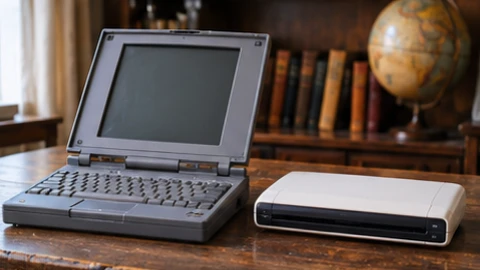
Step-by-step naps2 32-bit download article: where to find naps2 7.5.3, installer versus portable, verification and setup on 32-bit Windows.
Read article
Everything about naps2 Portable: how it works, where settings are stored, running it from USB, using it without admin rights and keeping it updated.
Read article
Our in-depth naps2 review covers interface, scanning quality, OCR accuracy, performance, file output, limitations and who should use it.
Read article